Add a new client and pet
Set up a new household and their pet so you can book the first visit.
Before you startSearch first with ⌘K, by the owner's last name or phone, so you don't create a duplicate.
Step 1: Add the client
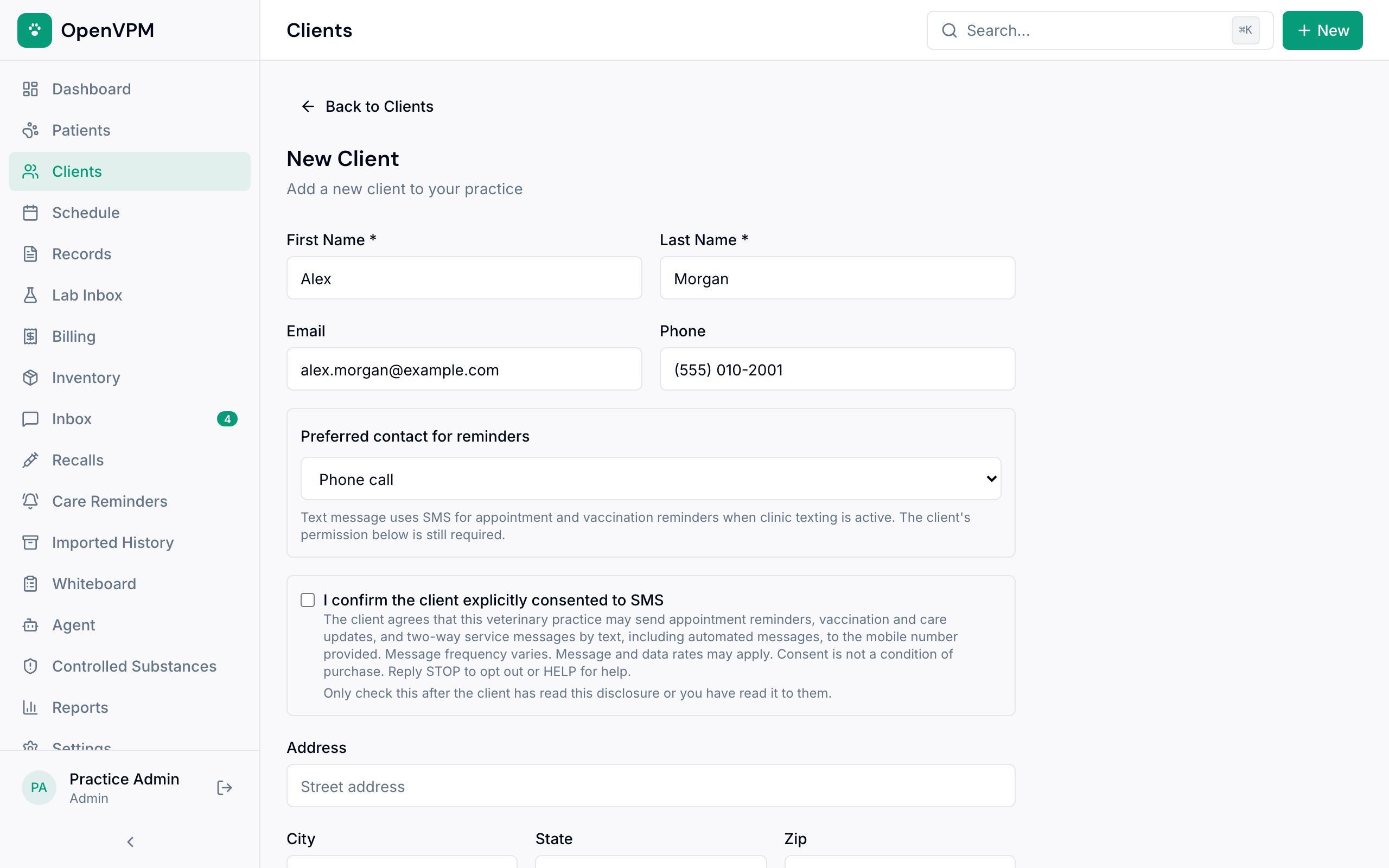
Go to Clients and choose New Client. Enter the first and last name 1. They're the only required fields, but add an email and phone so the clinic can reach them.
Choose how they'd like reminders in Preferred contact for reminders 2.
Step 2: Record text consent only if they gave it
Tick the consent box 1 only after the client has read the text message disclosure, or you've read it to them. It needs a valid mobile number.
Then choose Create Client 2. The client's page opens.
Step 3: Add their pet
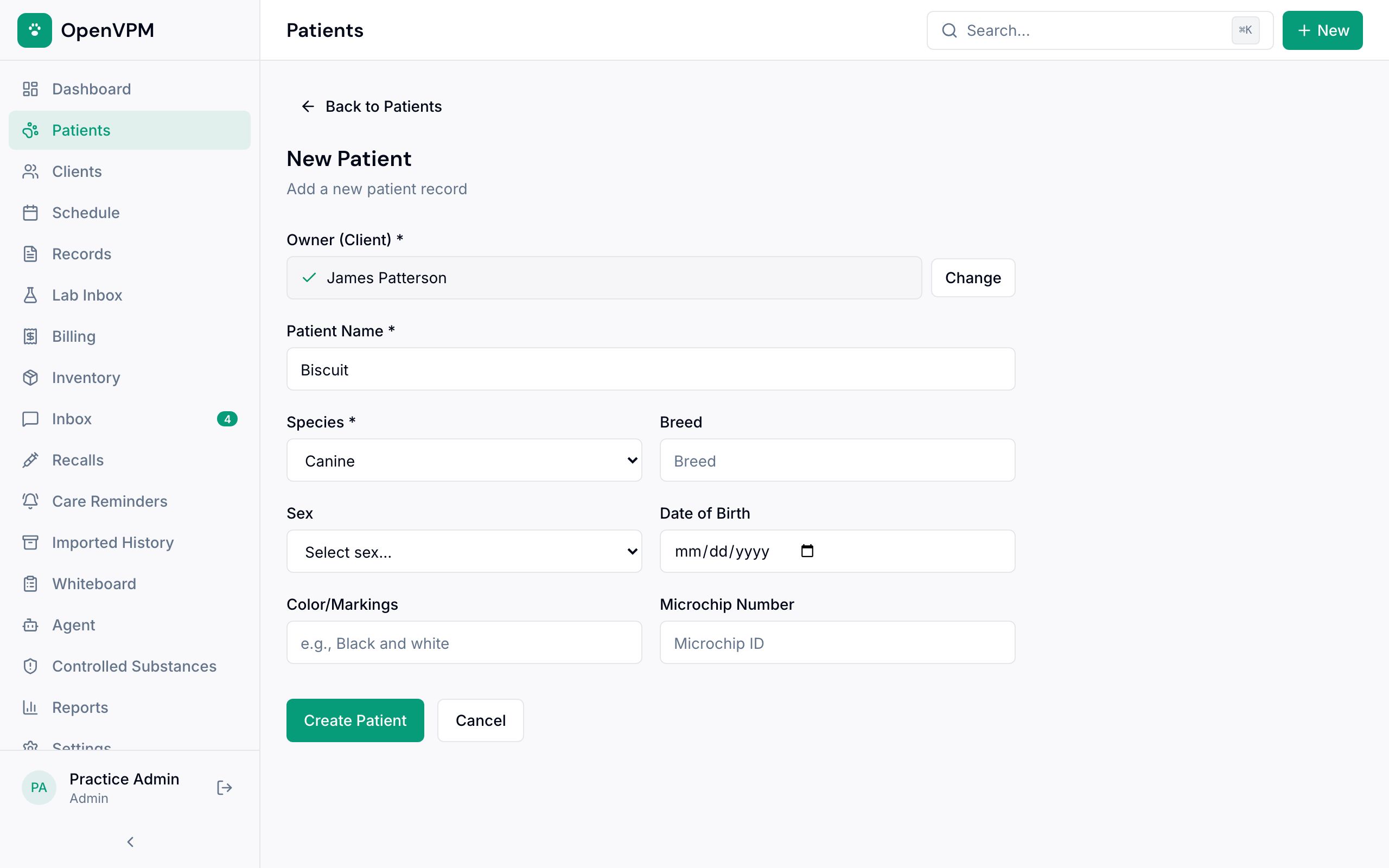
On the new client's page, choose Add patient under Patients. The owner 1 is already filled in.
Enter the Patient Name 2 and Species 3. Add the breed, sex, date of birth, color, and microchip number if you have them. Then choose Create Patient 4.
Adding another pet for a client who's already here? Go to Patients → New Patient and search for the owner.
Step 4: Book the visit
The pet's chart opens. Now book the appointment.
Something not working?
I added someone twice
Open Patients and choose Review duplicates to find pets that were added twice and merge them.