See the schedule in your own calendar
Subscribe once and the clinic's visits show up in Google, Apple, or Outlook.
Step 1: Get the clinic's calendar link
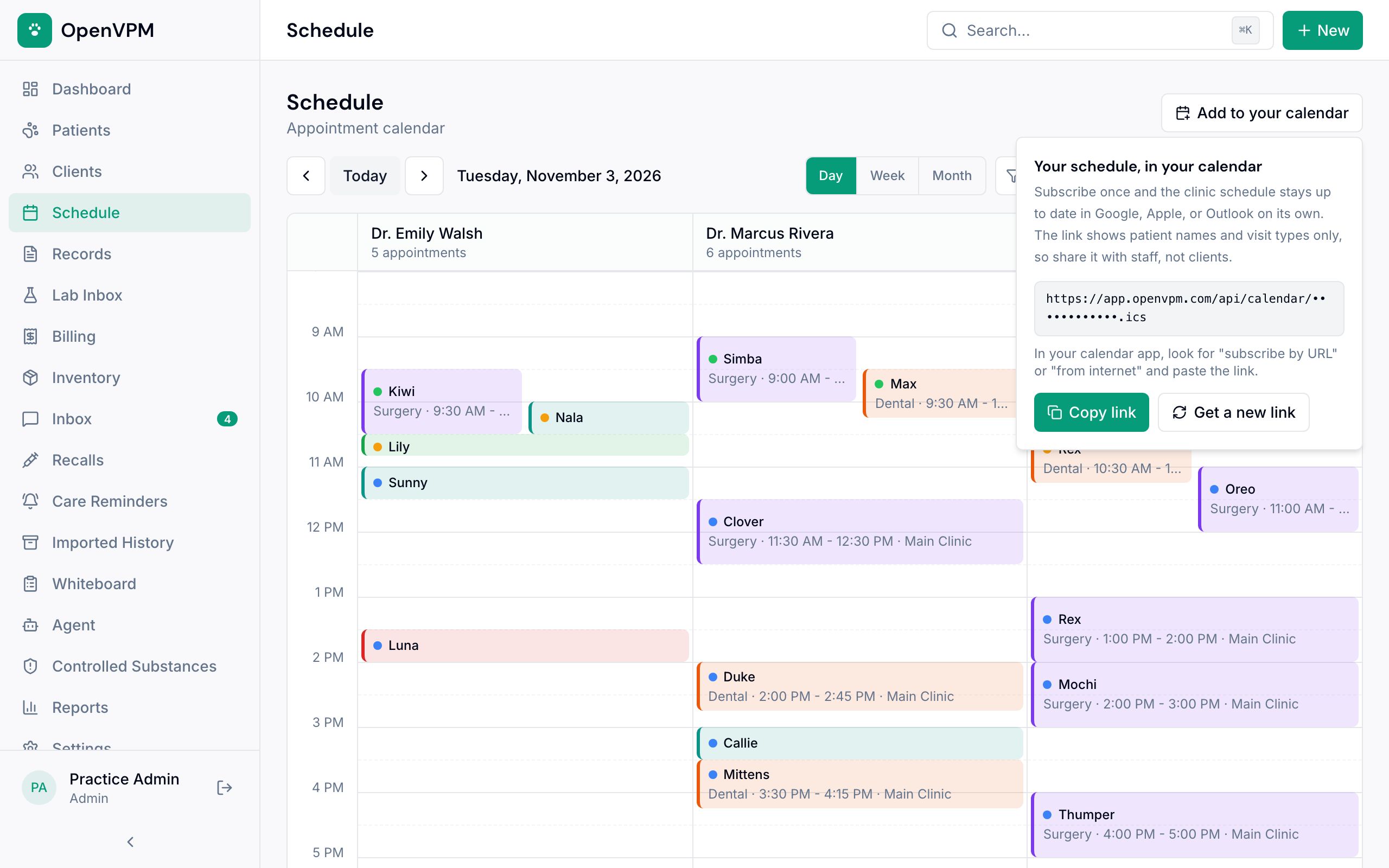
Open Schedule and choose Add to your calendar. The first time, choose Turn on the calendar link.
Choose Copy link 1 to copy the private link 2.
The link shows patient names and visit types. Share it with your team only, never with clients.
Step 2: Add it to Google Calendar
On a computer, open Google Calendar. Next to Other calendars, choose the plus sign, then From URL. Paste the link and choose Add calendar.
Step 3: Or Apple Calendar or Outlook
Apple Calendar on a Mac: choose File → New Calendar Subscription, paste the link, and choose Subscribe.
Outlook: in the calendar, choose Add calendar → Subscribe from web, paste the link, and give it a name.
Step 4: Let it update on its own
Book or change a visit in OpenVPM and your calendar picks it up. Calendar apps check on their own schedule, so a change can take a while to appear.
The calendar shows the last week and the next 60 days. Cancelled visits and no-shows are left out.
Something not working?
Someone who shouldn't have the link has it
An admin can choose Get a new link in the same panel. The old link stops working for everyone, so the team will need to subscribe again with the new one.
Can I change visits from my calendar?
No. The calendar is read-only. Make changes on the Schedule in OpenVPM.