Add an outside record or lab report
Keep referral letters, scans, and outside lab PDFs on the pet's chart.
Step 1: Open the pet's Documents tab
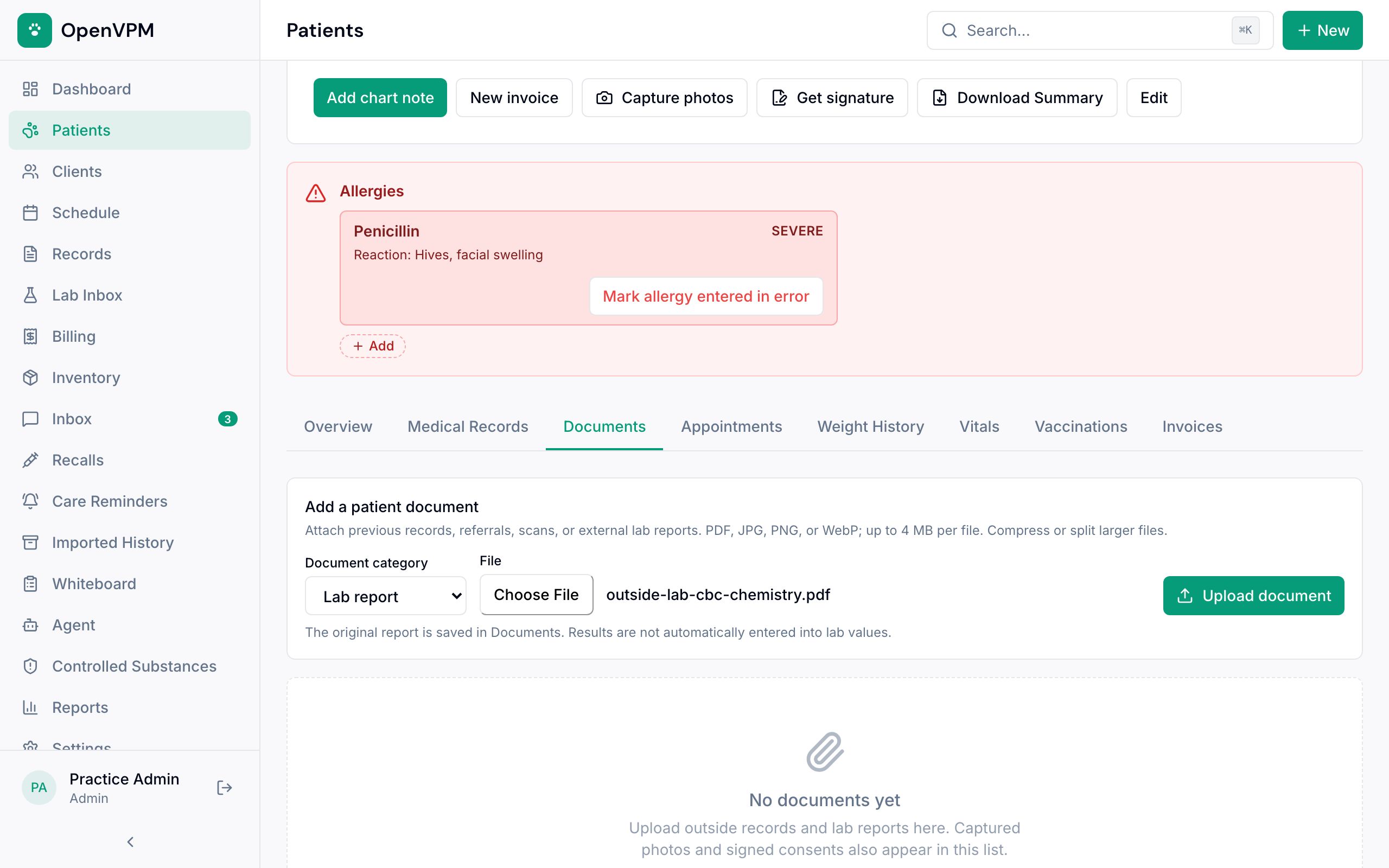
Go to Patients, open the pet, and choose the Documents tab 1.
Step 2: Pick the kind of file and upload it
Under Add a patient document, set Document category 1 to External record or Lab report. Choose the file 2, then Upload document 3.
PDF, JPG, PNG, and WebP files work, up to 4 MB each. Compress a large scan, or split a long record into smaller PDFs and upload each part.
Give files a useful name before you upload, like 2026-09-13-referral-part-1.pdf. The original file name shows in the list.
Step 3: Find it again
The file appears in the list below the form. Use the Lab reports filter to see only outside lab files, and View or Download to open one.
A lab report is saved as the original file. OpenVPM doesn't read the results out of it, so enter any values you need to track in Lab results.
Something not working?
The upload stopped or I'm not sure it worked
Choose Retry upload and keep the page open. OpenVPM checks and finishes the same upload, so you won't end up with two copies.
Who can upload?
Anyone on the team who can make changes. Viewer accounts can open and download documents but can't add them.